
Contents
DXcompanionThe editor and librarian for the Yamaha reface DX
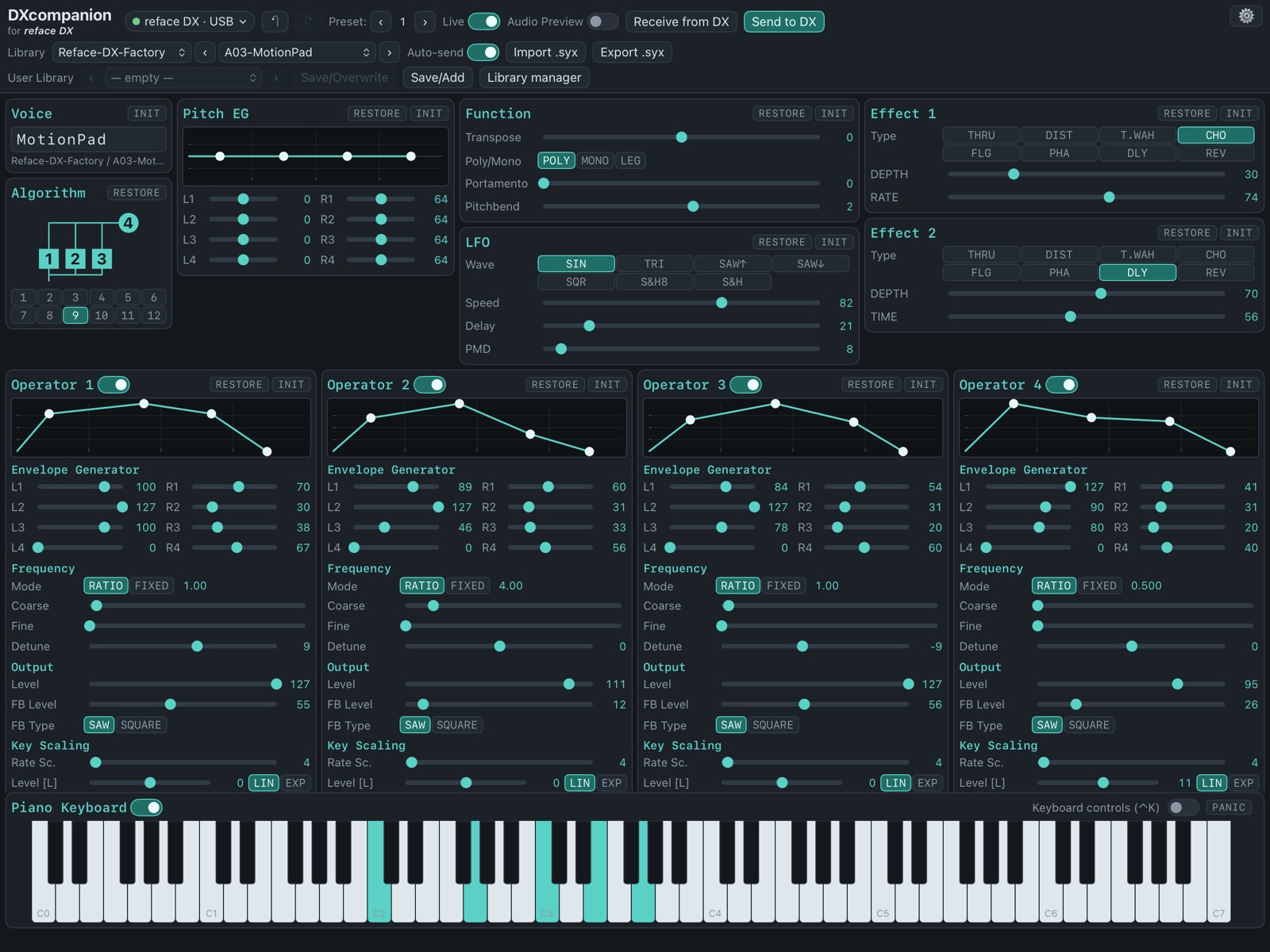
Every parameter of the reface DX on one screen: four operators with draggable envelopes, the algorithm, LFO, pitch EG and both effects. Edit live while you play, browse 4,382 factory voices, keep your own sounds in a User Library that syncs through iCloud, and hear voices in the app even when the reface isn't connected.
01Getting started
DXcompanion is the native edition of the DXcompanion web app, for iPad and Mac. It talks to the reface DX over MIDI SysEx, the same messages the reface itself uses to send and receive voices.
You need
A Yamaha reface DX, and a USB cable or a Bluetooth MIDI adapter. An iPad with iPadOS 17 or later, or a Mac with macOS 14 or later.
No reface?
Browse the libraries and hear every voice with Audio Preview. Everything except sending works without the instrument.
First launch
A welcome screen sums up the essentials. Reopen it any time from ⚙ → Welcome & help.
02Connecting the reface DX
DXcompanion finds the reface by itself. It first tries the ports you used last time, then a port named
reface DX, and finally asks every MIDI output for the reface's current voice and listens for the
answer. That last step is what finds a reface behind a Bluetooth adapter, whose port carries the adapter's name.
It looks again whenever a MIDI device is plugged in.
The status button at the top left shows the link: a green dot with the port name and USB or Bluetooth when it's up, a red one with No reface DX when nothing answers. While there's no link, a Connect… button sits next to it: it searches again and opens MIDI & Settings. Click the status button itself at any time for the settings.
USB cable
- Power the reface DX with its adapter or six AA batteries. It doesn't draw power over USB.
- Connect its USB port to the iPad or Mac: directly with a USB-C cable, or on a Lightning iPad through Apple's Lightning to USB 3 Camera Adapter.
- Open DXcompanion. The dot turns green within a second or two.
Bluetooth
The reface DX has no Bluetooth of its own. Plug a Bluetooth MIDI adapter such as the Yamaha MD-BT01 (the reference adapter) or UD-BT01 into its MIDI ports, then pair it once inside the app:
- Open ⚙ (top right) and choose Bluetooth MIDI….
- Pick the adapter in the list and connect. On the Mac the system's Bluetooth MIDI window opens instead.
- Close the sheet. DXcompanion probes the new port and connects to the reface behind it.
Pair MIDI adapters inside the app, not in the system's Bluetooth settings: Bluetooth MIDI devices only show up through the MIDI pairing window.
MIDI & Settings
The ⚙ sheet (also opened by the status button) holds everything about the link:
| Setting | What it does |
|---|---|
| Input / Output | Pick the ports by hand when automatic detection chose the wrong ones. |
| MIDI channel | Must match the reface's own receive channel (1 by default). |
| Find reface DX | Runs detection again. |
| Bluetooth MIDI… | Pairs a Bluetooth MIDI adapter. |
| Master Transpose | A reface system setting: it shifts the reface's own keys whatever voice is loaded, and isn't stored in voices. |
| MIDI log | The messages sent and received, for troubleshooting. |
03The editor
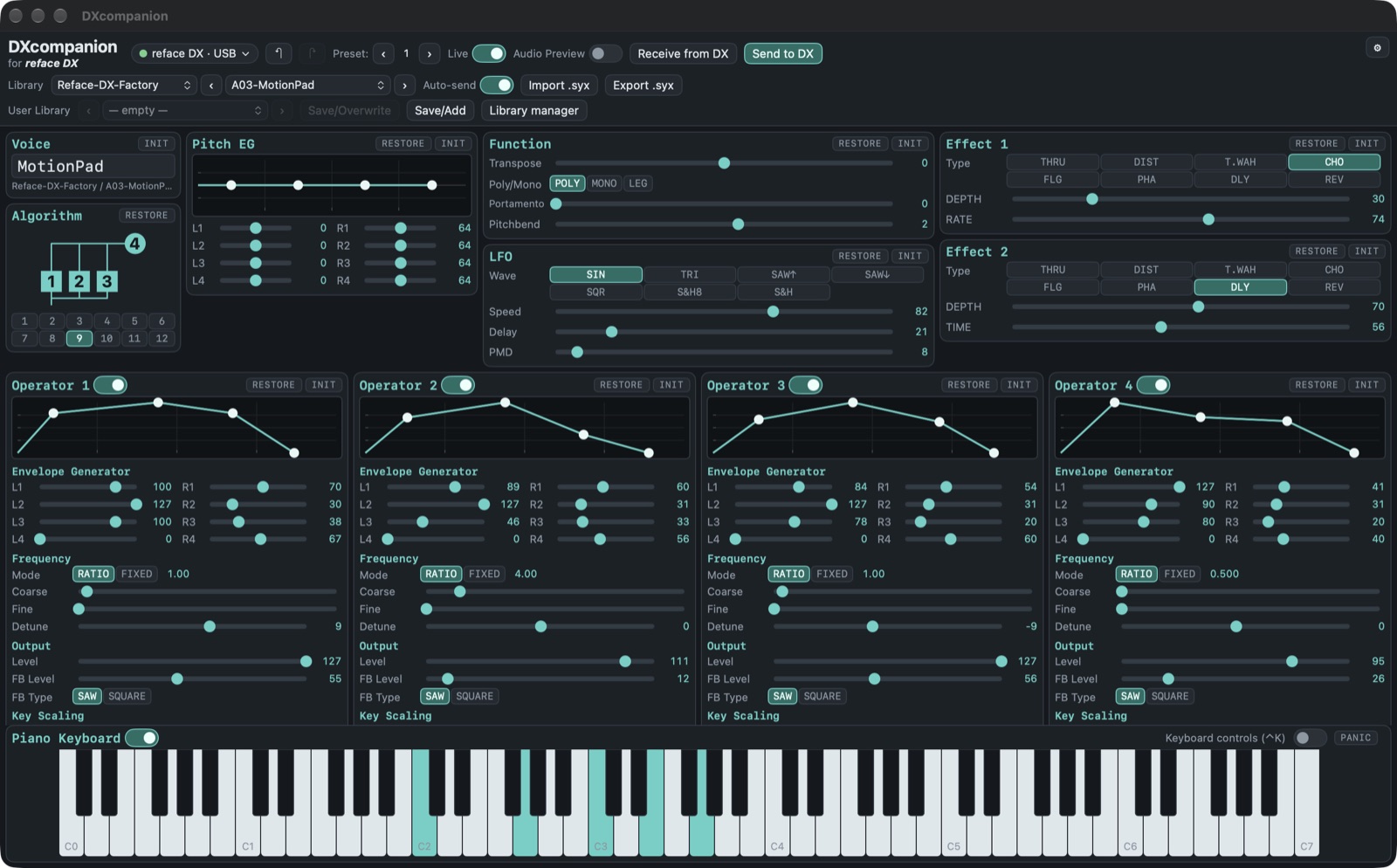
The screen follows the reface's own structure, in the same boxes as the web app: Voice, Algorithm, Pitch EG, Function, LFO, Effect 1 and Effect 2 along the top, the four Operator boxes below, and the Piano Keyboard at the bottom.
Controls
Sliders
On iPad, drag sideways anywhere on a slider: it moves from where it is, and finer the further your finger strays up or down. Vertical swipes scroll the page. On the Mac, click or drag to the value.
Envelopes
Drag the dots in an envelope graph to set its rates and levels; the sliders below follow.
Algorithm
Pick one of the 12 algorithms with the numbered buttons; the diagram shows how the operators connect.
Double tap
Double tap (or double-click) a slider to set it back to the value it had when the voice was loaded.
Live, Send and Receive
| Control | What it does |
|---|---|
| Live | On: every change goes to the reface as you make it, so you hear it at once. |
| Send to DX | Sends the whole voice to the reface's edit buffer. |
| Receive from DX | Reads the voice that's currently on the reface into the editor. |
| Preset ‹ 1 › | Switches the reface's preset (Program Change). |
| Auto-send | Sends voices you pick from a library to the reface straight away. |
The reface DX has no MIDI command to store a voice in a preset slot. A voice you send sits in the edit buffer until you change presets. To keep it on the instrument, press STORE on the reface and choose a slot. Your User Library in the app keeps it either way.
Knob and slider moves on the reface itself come back into the editor, so the screen always shows what you hear.
Undo, RESTORE and INIT
- Undo / Redo (↶ ↷ in the top bar, ⌘Z / ⇧⌘Z on the Mac) step through whole edits; a drag counts as one step.
- RESTORE in a box puts that box back to the loaded voice. INIT sets it to the Init Voice values.
- The Voice box shows ● edited while the voice differs from the one you loaded.
04Voices and libraries
Factory libraries
The Library row in the top bar holds 4,382 voices in 27 libraries, including the reface DX factory set. Pick a library and a voice, or step through them with ‹ ›. With Auto-send on, each one plays on the reface as you pick it.
User Library
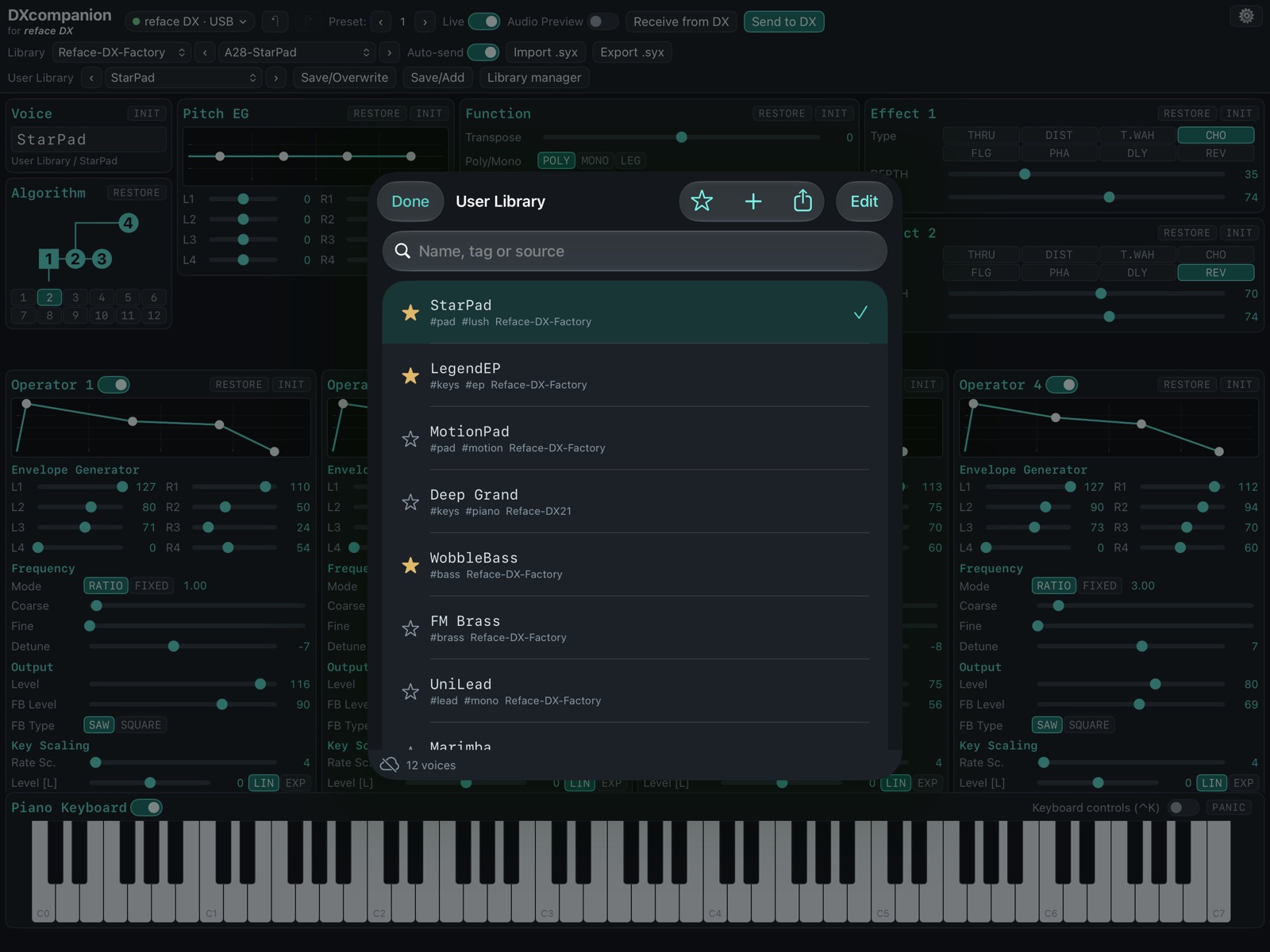
Your own voices. Save/Add adds the editor's voice as a new entry; Save/Overwrite replaces the entry you loaded. Open Library manager to:
- search by name, tag or source, mark favourites, rename, tag, reorder and delete;
- capture the voice that's currently on the reface;
- Read all 32 presets from the reface in one go: the app steps through the presets and saves each one;
- import
.syxfiles, export voices or banks as.syx, and back up or restore everything as JSON.
When you're signed in to iCloud, the User Library syncs between your iPad and Mac through your private iCloud database. Nobody else, including the developer, can see it.
.syx files and backups
- Import .syx: a file with one voice opens in the editor; a bank goes into the User Library.
- You can also open
.syxfiles from Files or Finder, or drag them onto the window. - JSON backups use the web app's format, so a library moves between the web app and this app in either direction.
05Audio Preview
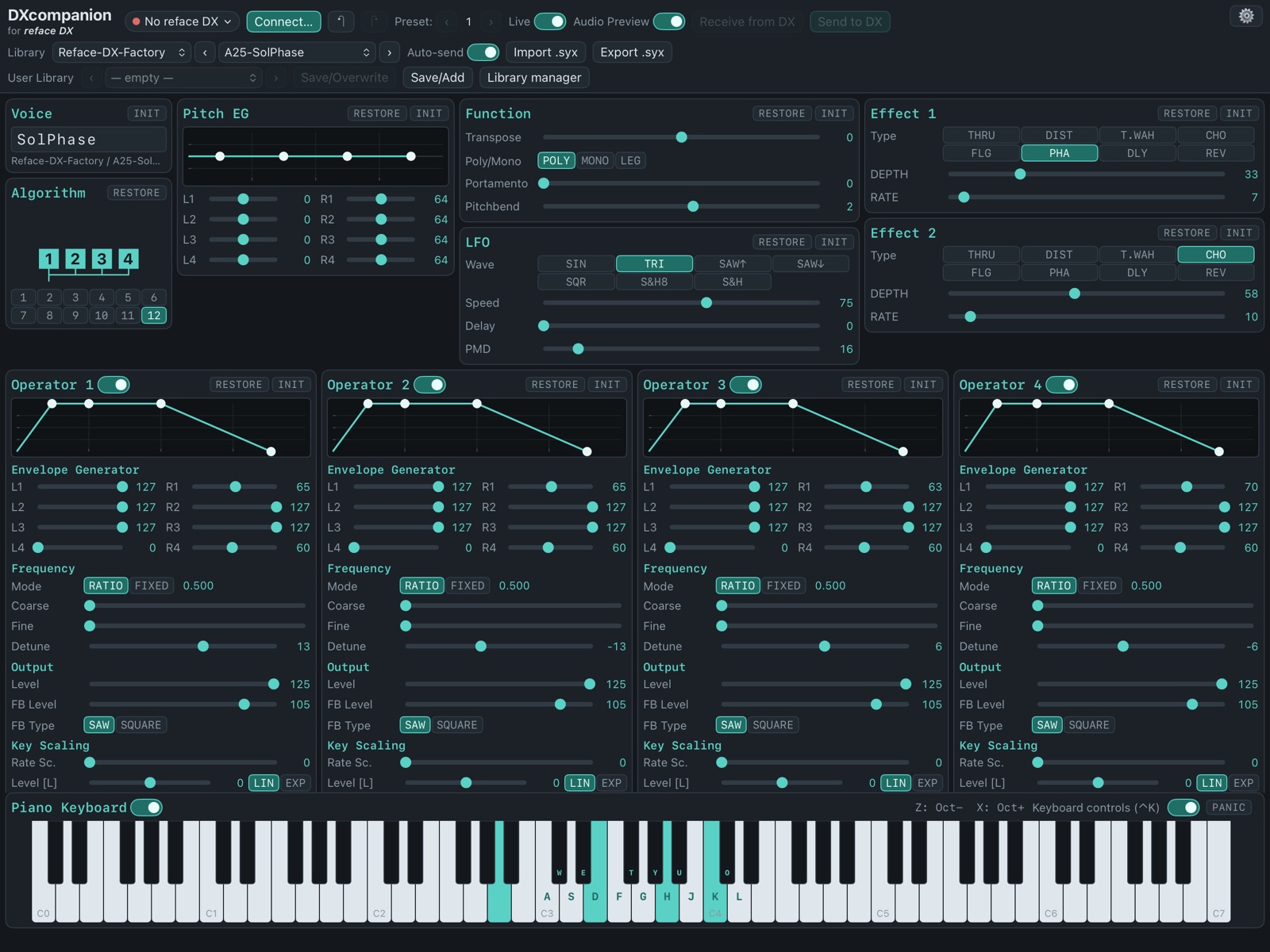
Switch on Audio Preview in the top bar to hear voices in the app itself, through a built-in FM engine modelled on the reface's. It plays from the on-screen keyboard, the computer keyboard and the reface's own keys, and follows every edit as you make it.
Audio Preview is an approximation for auditioning and editing on the go. The reface DX itself always has the last word on how a voice sounds.
06Playing
- The Piano Keyboard covers C0 to C7. Drag it sideways to reach other octaves; how far down you touch a key sets the velocity. Switch it off with the toggle in its title.
- Keys the reface plays light up too.
- Keyboard controls (⌃K) play notes from a computer keyboard, on the Mac or an iPad with a keyboard attached: A W S E D F T G Y H U J K O L are the piano keys, Z and X shift the octave.
- PANIC stops every sounding note.
07Mac shortcuts
| Keys | Action |
|---|---|
| ⌘R | Receive from reface DX |
| ⌘↩ | Send to reface DX |
| ⌘Z / ⇧⌘Z | Undo / Redo |
| ⌘. | Panic |
| ⌃K | Keyboard controls on / off |
| ← / → | Previous / next voice or preset, in the row whose ‹ › you used last (the factory Library to start with) |
| ↩ or esc | Finish editing the voice name, so the keys play notes again |
08Troubleshooting
The dot stays red: “No reface DX”
Check that the reface is switched on and powered by its adapter or batteries (USB doesn't power it), then tap Connect… in the top bar. If several MIDI devices are connected, choose the input and output by hand.
Make sure the MIDI channel in ⚙ matches the reface's receive channel.
The Bluetooth adapter doesn't appear
Pair it from ⚙ → Bluetooth MIDI…, not from the system Bluetooth settings. Check the adapter's LED: it should be on, and not connected to another device. On iPad, allow Bluetooth for DXcompanion in Settings if you declined earlier.
Sending works but the sound changes back
Changing presets on the reface reloads the stored preset over the edit buffer. Press STORE on the reface to keep the voice.
Edits arrive slowly over Bluetooth
Bluetooth MIDI carries less than a cable, so the app paces and merges fast slider moves. A full voice takes about a second. Use a USB cable for the fastest response.
My User Library doesn't appear on my other device
Both devices need to be signed in to the same Apple Account with iCloud Drive on. Sync can take a minute, and the library footer shows a crossed-out cloud when iCloud isn't available.
No sound from Audio Preview
Check that Audio Preview is on, the device isn't muted, and on iPad the silent switch or Control Centre mute is off.
09FAQ
Does it work with other reface models or other DX synths?
Not yet: this version is for the reface DX only. The web app covers more instruments.
Does it support iPhone?
Not at the moment. DXcompanion runs on iPad (landscape) and Mac.
Can I use my web app library?
Yes. Back it up as JSON in the web app and restore it in Library manager → Restore a backup…, or the other way round.
Does the app collect any data?
No. See the Privacy Policy.
Still stuck? Get in touch.